- When you tap on “MIT Scan to OneDrive for Business” for the first time, you will receive an email to authorize the connection.

- Click on “Authorize uniFlow Online” in the email, it will open the browser.

- Click on “Continue with your MIT account”
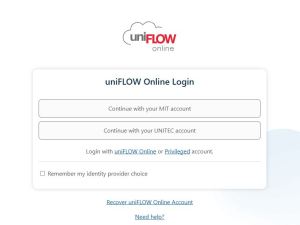
- Click on Authorize.
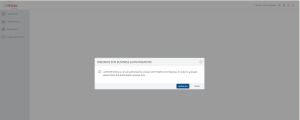
- Choose your MIT account.


- Once it is done, you can choose “MIT Scan to OneDrive for business”, and the scanned document will be saved in your MIT OneDrive.
This file is in PDF format and saved to the “Scans” folder under ‘My Files’
