Scan to me allows you to scan any document to your MIT email. You have to use your MIT ID card, as it has your email details preconfigured. Note the steps carefully below to use this feature.
- Tap your ID card on the card reader to log in.

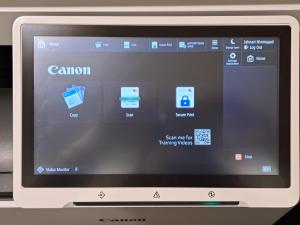
- Select Scan on the Printer Home screen.
- You can choose from 2 options, to save scanned documents to your OneDrive, which require an initial set up, select “MIT Scan to OneDrive for Business”.
Or You can select “Scan to Myself”, this will send the document as an attachment to your MIT email.

- You can now place your documents to be scanned in the feeder and tap Start Scan.

Note: Tap scan settings, to change for duplex scan [feed], full color, resolution, etc.