This guide will show how you can register your ID card on the MIT Canon printers for the very first time.
1. Look for the MIT canon printer near you and have your ID card handy.
2. Tap your ID card on the card reader mounted on the printer

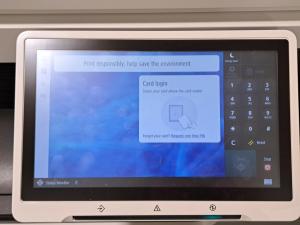
3. Since you have not registered your card on the printers before, tap on “send Registration Code”.
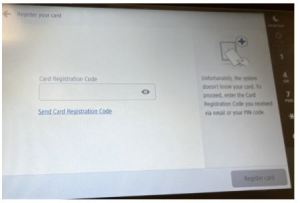
4. Enter your email address:
Staff – firstname.lastname@manukau.ac.nz
Students – username@manukaumail.com
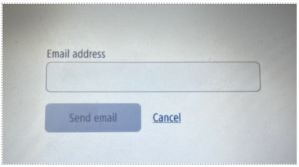
5. Check your email for the code.

6. You will receive an email like the one below.
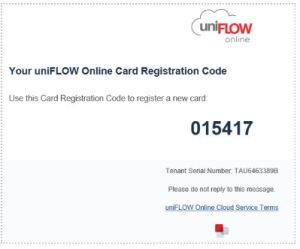
7. Tap the card again, Enter the registration code from your email, then choose “Register card”
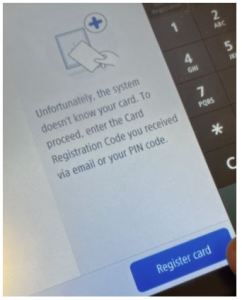
8. Tap the card again.
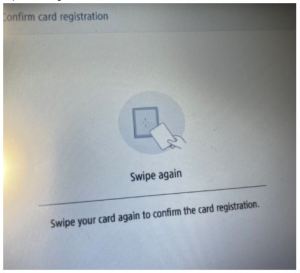
9. Printer will send you another email with a different code.
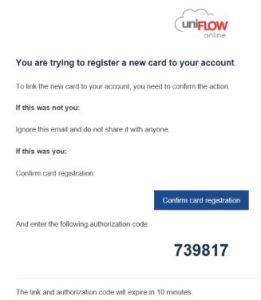
10. Remember the authorisation code, then click “Confirm card registration” in the email. It will open a browser and bring you to the registration site.
11. Enter the code and click “Register card”.

12. You have now registered your card.