If you are you are using a Mac device as your work computer
What you need to know: New Uniflow printer driver:
The required Uniflow print driver for the Canon printers, will be automatically installed on your work computer.
To confirm installation, on a macOS device open Applications folder, scroll down, and look for uniFLOW SmartClient.app.

Note: Once installed, you will need to reboot your computer.
After the reboot and login, you will be required to sign in with your MIT or Unitec account
- Go to the MIT and Unitec uniFLOW portal by following the link Printing Portal. or type mitandunitec.au.uniflowonline.com into your browser
- Click on “Continue with your MIT account” for MIT staff or “Continue with your Unitec account” for Unitec staff. This will automatically sign you in.
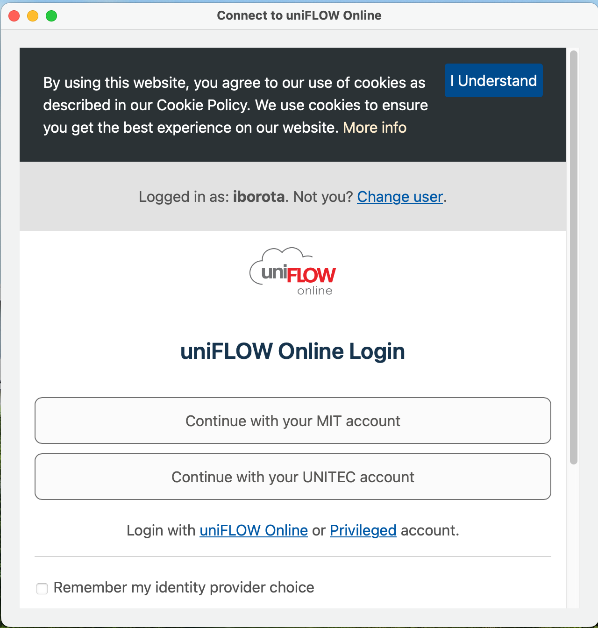
All users would have received a “Welcome to uniFLOW online” email, confirming that their account has been enabled on the new printing system.
How to Print:
- From within an application select “Secure Print” from the dropdown menu of your printer options to print from your device.
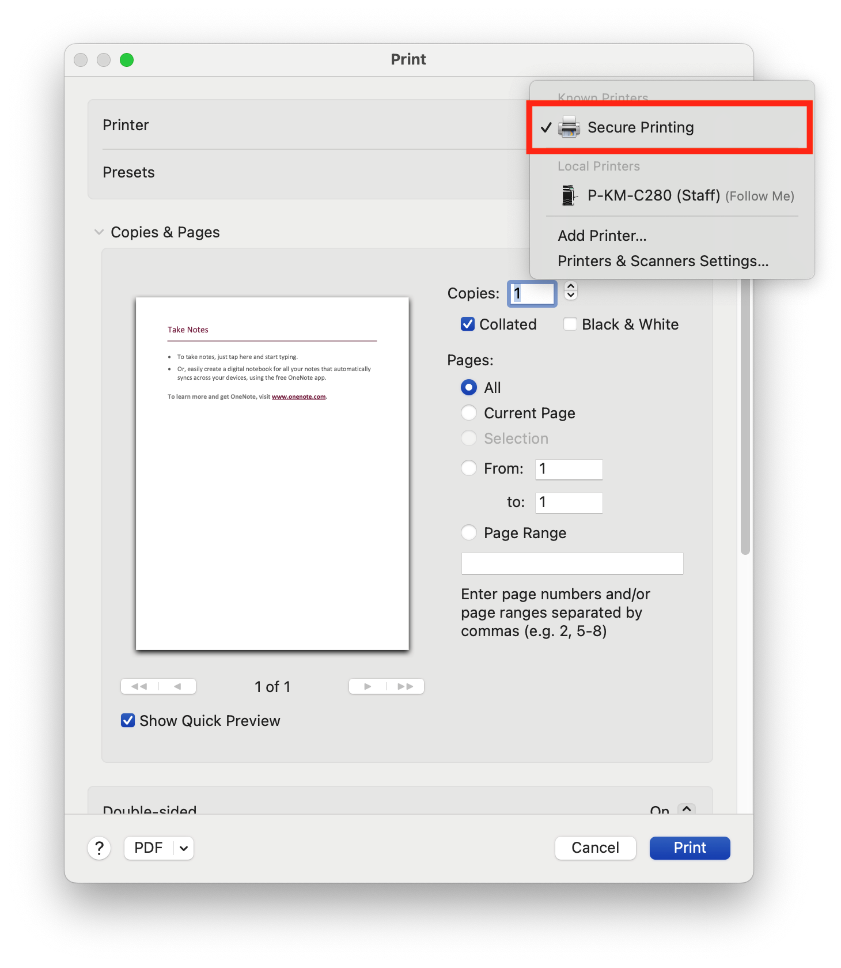
Please Note that these instructions will only work for MIT-managed Macs.